قاعدة المعرفة
أوضاع الرسومات والصورة
ما الذي يغيّره وضعا الرسومات «بسيطة» و«واقعية»، وكيف تنشئ الصور من «تصدير»، وعلى أي الأجهزة تعمل، وأي وضع يناسب حاسوبك.
بسيطة وواقعية
اختر الرسومات في أداة الكاميرا في شريط الأدوات. لها وضعان:
- بسيطة هو الوضع السريع. يبقي التجوّل سلسًا على الحواسيب المحمولة الأقدم، وهو الوضع الوحيد على الهواتف والأجهزة اللوحية.
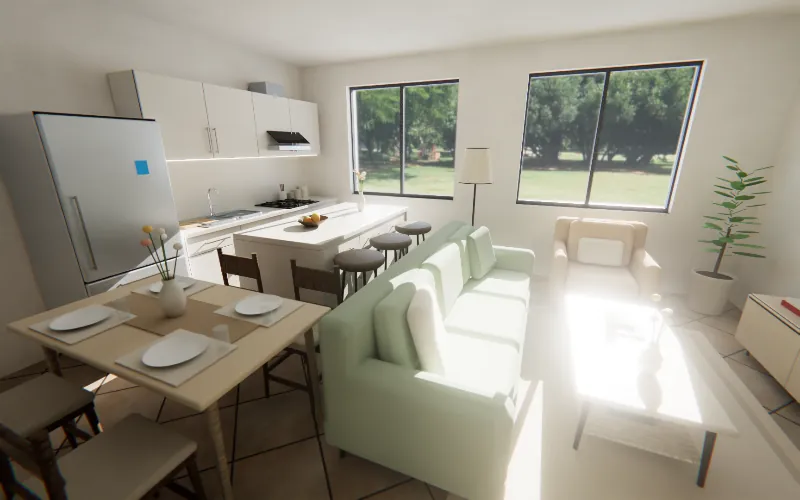
- واقعية يضيف إضاءة طبيعية وانعكاسات وصورة بجودة الصور الفوتوغرافية عندما تتوقف عن الحركة. وهو مخصص للحاسوب. ولا تعمل مؤثرات الكاميرا (التوهج والحبيبات وغيرها) إلا في هذا الوضع؛ راجع الكاميرا والمصابيح.
تبدأ كل زيارة بالوضع «بسيطة». ولا يُحفظ اختيارك: بعد إعادة تحميل الصفحة تعود الرسومات «بسيطة». وعلى الهواتف والأجهزة اللوحية تكون دائمًا «بسيطة» ولا يظهر الاختيار. وإذا بدا أن «واقعية» ستكون بطيئة على حاسوبك (معالج بأنوية قليلة أو ذاكرة قليلة أو متصفح بلا WebGPU)، أو أصبح التجوّل متقطعًا، يعرض شريط التبديل إلى «بسيطة». ولا يبدّل العارض من تلقاء نفسه أبدًا؛ القرار قرارك، ويمكنك العودة في أي وقت.
Photos and the Render button
The Render button in the top bar turns the view you are looking at into a picture. Two kinds of picture are made:
- Local render is a photo-quality picture of exactly what you see, made on your computer. It is traced pass by pass, up to 192 passes, following how light travels through the room, and a denoiser then smooths out the grain, so shadows and reflections look natural. It is free.
- AI render turns the 3D picture of your view into a photograph. It costs 7 credits a picture (the button shows the price) and needs you to be signed in. It works on any device, phones included, because the AI draws it from a screenshot of the view. It is made at about 2K and scaled to the size you pick.
- Walk to where you want a picture. Set the hour in the Sun tool and the lamps first if you like.
- Press the round red camera button, Photo, at the bottom right of the picture. The view joins the photo queue, and a small counter appears on Render. Add as many views as you like, up to 12; the same view in the same light is added only once.
- Open Render. Choose a Size: As is (the shape of your window), Horizontal (1920 × 1080), Vertical (1080 × 1920) or Square (1080 × 1080). The view takes that frame, with dark margins around it, and the file has exactly that size. Then choose the picture style: AI render, Local render or Sketch (coming soon). Choose Render the queue, or Render this view for just the view on screen.
- For AI render you can also write Your wishes (up to 400 characters, for example "warm evening light, oak floor") and add one Reference picture: a picture of a look you like, with its materials, colours and mood.
- The pictures are made one after another in this window, so keep it open and in front. A traced Local render takes about a minute each; an AI render is quicker. Each thumbnail shows its own progress, and the Photo button shows the progress of the whole run; press it to stop. If the graphics are Simple, a Local render switches them to Realistic for you when your browser supports WebGPU. If an AI render fails, nothing is charged, and the failed view stays in the queue with the reason.
- Finished pictures go to the gallery: Open gallery in the Render panel. Click a picture to see it large; use the arrows, a swipe or the left and right keys to move between them, and Esc or a click outside to close. Each one has its own download button, and Download all as ZIP saves them in one file. Pictures are kept in this browser, and in your account when you are signed in; the oldest are removed when there are too many, so download the ones you want to keep.
Tick Film grain, Chromatic aberration or Depth of field in the same panel to add them to a Local render; they are available in Realistic graphics and are not applied to an AI render. While pictures are being made, any action that would cancel one asks you to confirm first.
For a quick picture of exactly what you see now, use Picture of this view in the Files tab of Share: it opens a high-resolution picture in a new tab, or downloads it if the browser blocks the tab.
A traced Local render needs a computer whose browser supports WebGPU, such as Chrome or Edge. On phones, tablets and browsers without it, a Local render takes each picture as the view looks, without the long render, and the button reads Make pictures; AI render works there too. Simple and Realistic still work normally.
أي وضع أستخدم؟
- للتجوّل في تصميم على هاتف أو جهاز لوحي: بسيطة، وهي مفعّلة هناك دائمًا.
- للتجوّل على حاسوب قديم: بسيطة.
- لتقدير الضوء والأجواء على حاسوب يتحمّل ذلك: واقعية.
- A picture for a listing, a message or a moodboard: Picture of this view for a quick one, or add views to the photo queue and use Render for the best quality.
إذا لم يعمل شيء كما ينبغي، راجع استكشاف الأخطاء وإصلاحها.
شاهده بتقنية ثلاثية الأبعاد
افتح تصميمًا نموذجيًا وتجوّل فيه، وتحقّق من الشمس، واضبط الساعة وشاهد المصابيح تضيء. الأمر مجاني، في متصفحك، ولا حاجة إلى تثبيت أي شيء.
أو افتح أحد النماذج مباشرة: كوخ معلّم من عشرينيات القرن العشرين (1920–1929) · شقة بغرفتي نوم