ナレッジベース
グラフィックスモードと写真
シンプルとリアルのグラフィックスの違い、書き出しで写真を作る方法、使える端末について説明します。
シンプルとリアル
グラフィックスは、左のツールバーのカメラツールで選びます。モードは2つあります。
- シンプルは高速なモードです。古いノートパソコンでも、なめらかに歩けます。スマートフォンとタブレットでは、このモードだけです。
- リアルは、自然な光や反射を加え、立ち止まったときに写真品質の映像を表示します。パソコン向けのモードです。カメラのエフェクト(グロー、グレインなど)は、このモードでだけ使えます。カメラと照明をご覧ください。
訪問のたびに、最初はシンプルで始まります。選んだモードは保存されません。ページを再読み込みすると、グラフィックスはシンプルに戻ります。スマートフォンとタブレットでは常にシンプルで、選択肢は表示されません。お使いのパソコンでリアルが重くなりそうな場合(プロセッサのコア数やメモリが少ない、またはブラウザがWebGPUに対応していない)や、歩くのがカクつくようになった場合は、画面にバーが現れて「シンプル」に切り替えることを提案します。ビューアが自動で切り替えることはありません。決めるのはあなたで、いつでも元に戻せます。
Photos and the Render button
The Render button in the top bar turns the view you are looking at into a picture. Two kinds of picture are made:
- Local render is a photo-quality picture of exactly what you see, made on your computer. It is traced pass by pass, up to 192 passes, following how light travels through the room, and a denoiser then smooths out the grain, so shadows and reflections look natural. It is free.
- AI render turns the 3D picture of your view into a photograph. It costs 7 credits a picture (the button shows the price) and needs you to be signed in. It works on any device, phones included, because the AI draws it from a screenshot of the view. It is made at about 2K and scaled to the size you pick.
- Walk to where you want a picture. Set the hour in the Sun tool and the lamps first if you like.
- Press the round red camera button, Photo, at the bottom right of the picture. The view joins the photo queue, and a small counter appears on Render. Add as many views as you like, up to 12; the same view in the same light is added only once.
- Open Render. Choose a Size: As is (the shape of your window), Horizontal (1920 × 1080), Vertical (1080 × 1920) or Square (1080 × 1080). The view takes that frame, with dark margins around it, and the file has exactly that size. Then choose the picture style: AI render, Local render or Sketch (coming soon). Choose Render the queue, or Render this view for just the view on screen.
- For AI render you can also write Your wishes (up to 400 characters, for example "warm evening light, oak floor") and add one Reference picture: a picture of a look you like, with its materials, colours and mood.
- The pictures are made one after another in this window, so keep it open and in front. A traced Local render takes about a minute each; an AI render is quicker. Each thumbnail shows its own progress, and the Photo button shows the progress of the whole run; press it to stop. If the graphics are Simple, a Local render switches them to Realistic for you when your browser supports WebGPU. If an AI render fails, nothing is charged, and the failed view stays in the queue with the reason.
- Finished pictures go to the gallery: Open gallery in the Render panel. Click a picture to see it large; use the arrows, a swipe or the left and right keys to move between them, and Esc or a click outside to close. Each one has its own download button, and Download all as ZIP saves them in one file. Pictures are kept in this browser, and in your account when you are signed in; the oldest are removed when there are too many, so download the ones you want to keep.
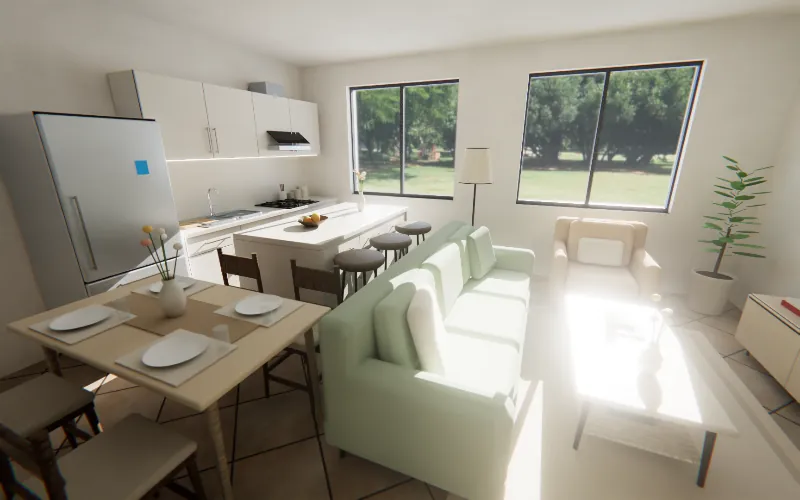
Tick Film grain, Chromatic aberration or Depth of field in the same panel to add them to a Local render; they are available in Realistic graphics and are not applied to an AI render. While pictures are being made, any action that would cancel one asks you to confirm first.
For a quick picture of exactly what you see now, use Picture of this view in the Files tab of Share: it opens a high-resolution picture in a new tab, or downloads it if the browser blocks the tab.
A traced Local render needs a computer whose browser supports WebGPU, such as Chrome or Edge. On phones, tablets and browsers without it, a Local render takes each picture as the view looks, without the long render, and the button reads Make pictures; AI render works there too. Simple and Realistic still work normally.
どのモードを使えばいい?
- スマートフォンやタブレットでデザインを歩いて回る:シンプル。そこでは常にシンプルです。
- 古いパソコンで歩いて回る:シンプル。
- 余裕のあるパソコンで光や雰囲気を確かめる:リアル。
- A picture for a listing, a message or a moodboard: Picture of this view for a quick one, or add views to the photo queue and use Render for the best quality.
うまく動かないときは、トラブルシューティングをご覧ください。
3Dで見てみましょう
サンプルデザインを開いて歩き回り、太陽の位置を確かめ、時刻を合わせてランプが灯るのを見てみましょう。無料で、ブラウザだけで使えます。インストールは不要です。
サンプルを直接開く: 1920年代の教員住宅 · 2ベッドルームのアパートメント