Knowledge base
Measure
Measure a distance or the area of a floor, wall or ceiling right in the 3D home, with points that snap to corners and edges.
Measure in the toolbar on the left answers the questions a plan leaves open: will a 160 cm sofa fit between the door and the window, how much floor is there for a rug, how big is that wall? Your taps snap to the corners and edges of the rooms and the furniture, and the values come from the plan.
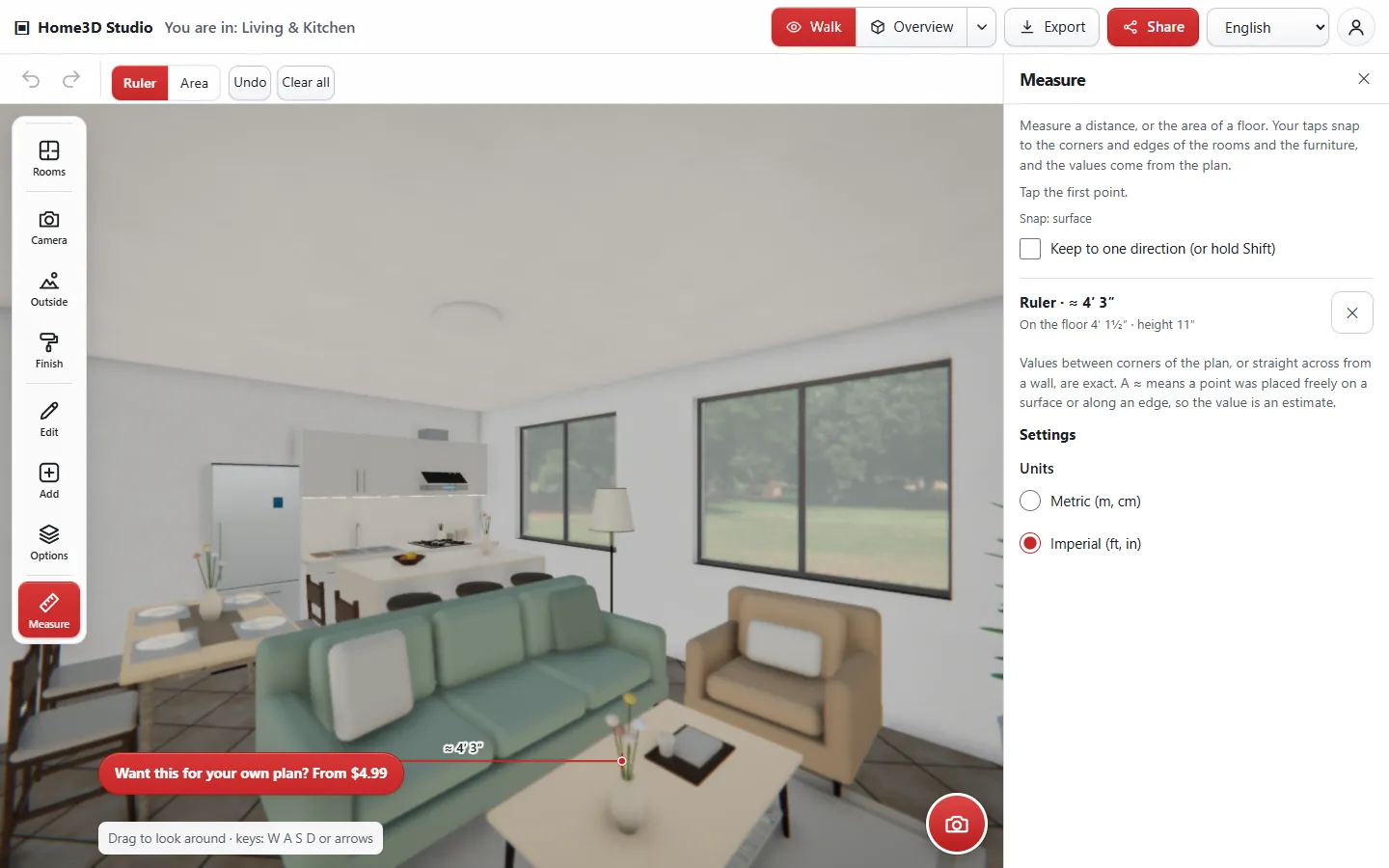
Measure a distance
- Open Measure and choose Ruler.
- Tap the first point, then the second. The length appears on the line, with the length along the floor and the height difference in the panel.
- Tick Keep to one direction, or hold Shift, for a line straight along a wall or straight up.
Measure an area
- Choose Area.
- Tap the corners of the shape one by one: on the floor, on a wall, on the ceiling or on a sloping surface.
- Tap the first point again, or choose Close the shape, to finish. The area and the perimeter appear.
Change and clear
- Click a measurement and choose Move its points to drag its red points to a new place; click it again when it is right.
- Remove this measurement deletes one; Undo takes back the last point; Clear all removes everything.
- Under Settings, Units switches between Metric (m, cm) and Imperial (ft, in).
How exact is it?
Values between corners of the plan, or straight across from a wall, are exact to the plan. A ≈ means a point was placed freely on a surface or along an edge, so the value is an estimate. All values are only as accurate as the plan they come from: check important sizes on site before you buy furniture or order materials.
For room areas, the Rooms list already shows the floor and wall area of every room; see Overview and rooms.
See it in 3D
Open a sample design and walk through it, check the sun, set the hour and watch the lamps come on. It is free, in your browser, with nothing to install.
Or open a sample directly: 1920s teacher's cottage · Two-bedroom apartment