Knowledge base
Finishes, skirting and crown moulding
Change floors, walls and ceilings with materials, paint and wallpaper, upload your own texture, and set the skirting boards and crown moulding.
Finish in the toolbar on the left changes how a room's floor, walls and ceiling look: a photographed material, a paint colour or a wallpaper, ours or your own. Choose the room in Room at the top of the panel, or All rooms to change every room at once.
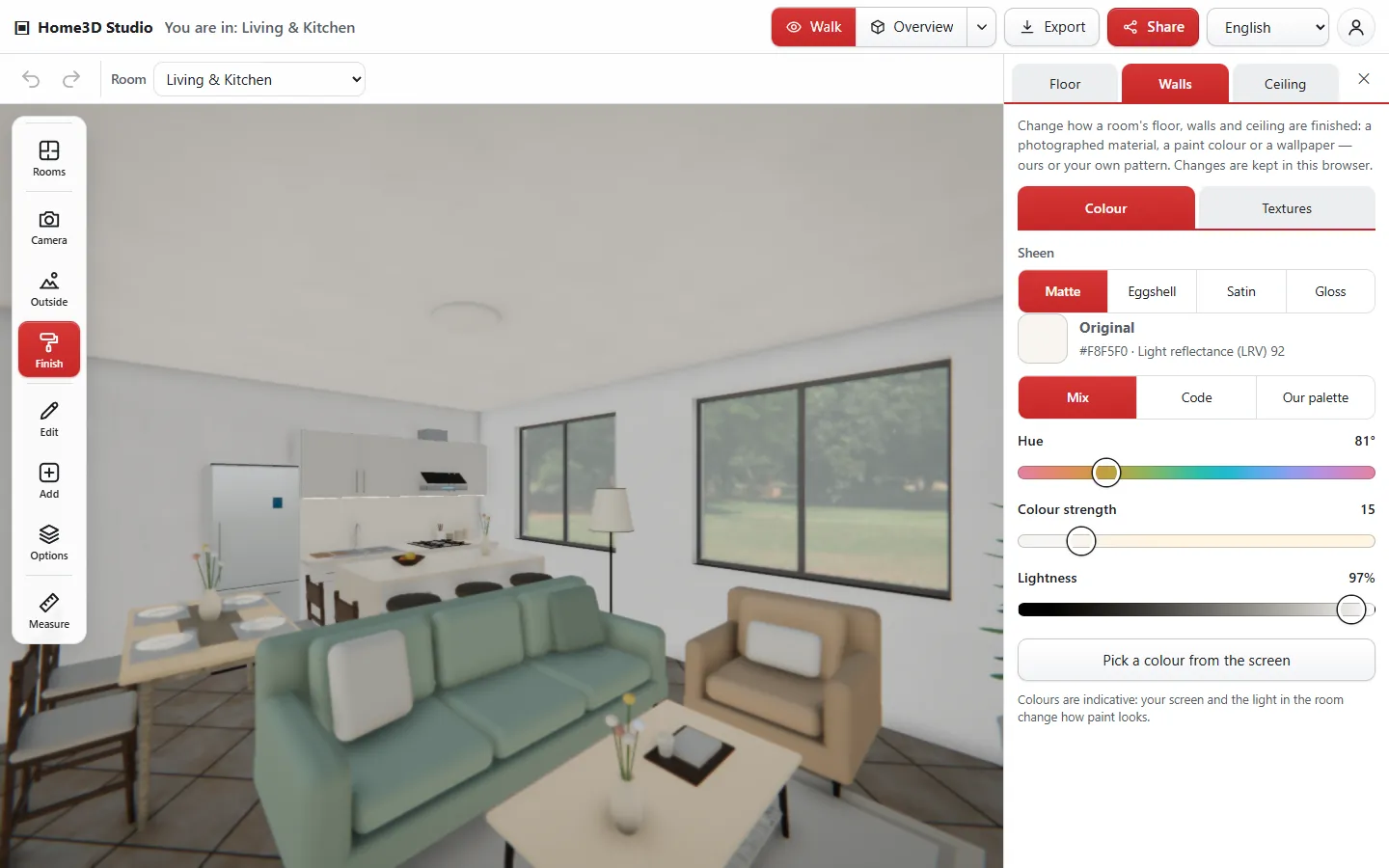
Floor, Walls and Ceiling
The tabs at the top of the panel choose the part of the room.
- Floor: wood (Light oak, Laminate, Walnut, Chestnut, Herringbone), tiles and stone (Tiles, Large tiles, Marble, Terrazzo, Anti-slip tiles), Concrete and Carpet.
- Walls and Ceiling: a Colour tab with our palette, a colour mixer, a HEX code and a picker that takes a colour from the screen, and a Textures tab with plaster, brick, wood panelling, fabric and wallpapers. Paint has a Sheen, from Matte to Gloss.
- Size makes the pattern of a texture or wallpaper larger or smaller; the lock keeps width and height together.
Each texture comes with its own relief and sheen, which show in Realistic graphics and in photos. Reset to default brings back the look the plan came with.
Your own texture
- Choose Upload texture and pick a photo of a surface: PNG, JPEG or WebP, at least 256 px on its shorter side.
- The light is evened out and the edges are blended, so it repeats without seams. It appears under Your textures.
- Optional: Improve quality adds relief and sheen with a small AI model that runs in your browser. It is free, your photo does not leave the device, and it needs a browser with WebGPU, such as a recent Chrome or Edge.
Signed in, your textures are saved to your account and come to your other devices; otherwise they stay in this browser. A share link shows the room's original finish in place of your own texture.
Skirting boards and crown moulding
Every room has a skirting board at the bottom of the walls and a crown moulding at the top, except bathrooms and other wet rooms. To change them, open Finish, choose Walls, then the Offset tab.
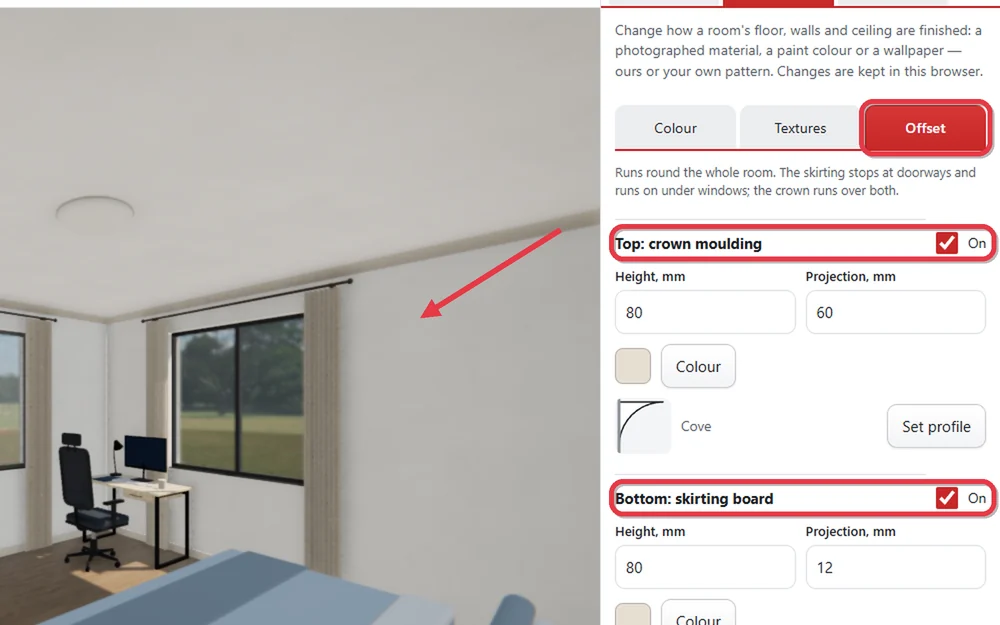
- Top: crown moulding and Bottom: skirting board each have On and Off.
- Height, mm and Projection, mm set the size; Colour works like the wall colour.
- Set profile chooses the shape of the edge: Flat, Round, Ogee or Cove, or draw your own. Drag the points to shape the edge, tap the field to add a point and tap a point twice to remove it. Choose Apply to keep it.
The skirting runs round the whole room, stops at doorways and runs on under windows; the crown moulding runs over doors and windows alike.
Below them, Casings: doors sets the frame round the doors of the room, on or off, with its Width, mm and the same settings as above; tick Round the windows too to frame the windows the same way. A single door can go without a casing: untick Casing round this door in Edit; see Edit walls, doors and windows.
Good to know
- Finishes are kept with the design: in this browser, in your account when you are signed in, in design options and in the share link.
- Undo above the picture takes back a change of finish.
- Colours on a screen are indicative: the light in the room and your screen change how paint looks.
See it in 3D
Open a sample design and walk through it, check the sun, set the hour and watch the lamps come on. It is free, in your browser, with nothing to install.
Or open a sample directly: 1920s teacher's cottage · Two-bedroom apartment