Knowledge base
Edit and add furniture
Move, rotate, resize, recolour and delete furniture, set lamps and curtains, and add new pieces from a catalogue of 75 or your own.
The Edit and Add tools in the toolbar on the left let you try another arrangement of the rooms.
Select and move
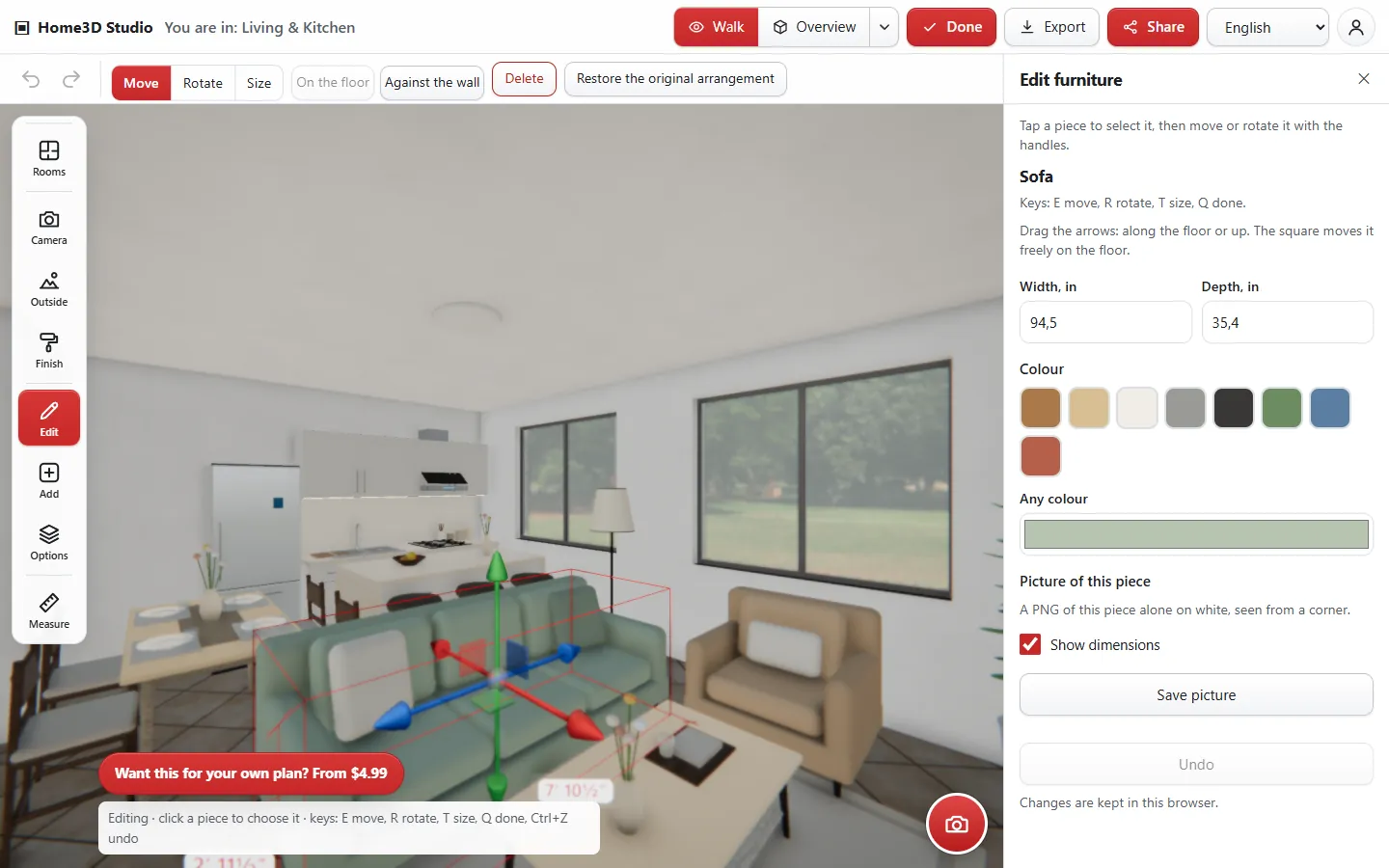
- Open Edit and tap or click a piece of furniture. A frame appears around it, with handles you can drag. Only a piece you can see is picked, not one hidden behind a wall.
- In Move mode, drag the arrows to slide the piece along the floor or up, and drag the square to move it freely on the floor.
- In Rotate mode, drag the ring to turn the piece. The buttons turn it in steps: −15°, +15° and 90°.
- In Size mode, drag the cubes to make it wider or deeper; for some pieces, taller too.
- Choose Done when the piece is where you want it. On a keyboard: E move, R rotate, T size, Q done.
- Tap a door to choose which room it opens into, the side of its hinges, its type and its width; see Edit walls, doors and windows.
Put it in place
- On the floor sets the piece down on the floor.
- Against the wall pushes the piece, back first, against the nearest wall.
Size, colour and delete
Type a new Width, cm and Depth, cm, pick one of the colours or any colour, or choose Delete to remove the piece.
Lamps, curtains and pictures
- Lamps and other pieces that glow (such as a backlit mirror) have Light: Auto shines in the evening; On and Off keep it so. Brightness and Warmth set its light.
- Curtains and blinds hang at the windows by default. Click curtains to open or close them; blinds go round closed, open, up and down with each click. In Edit, curtains have a Material, a Density and a Blur that shows in photos, and a Shade colour.
- Picture of this piece saves a PNG of the selected piece alone on white, seen from a corner, with its dimensions if you tick Show dimensions.
Undo and restore
Undo takes back your last change. Restore the original arrangement brings back the layout from the plan; press it twice to confirm. Your changes are kept in this browser, and on your own plan in your account when you are signed in. The link from Share carries them, so the person you send it to sees your arrangement; a very large number of changes may not fit in a link, and the Share window says so. On a plan read free, links for other people are not open; they come with a subscription.
Add furniture
Open Add to see a catalogue of 75 pieces with pictures, from sofas, beds and kitchen wall units to stairs, trees and cars. Use the groups at the top, or Search, to find a sofa, a table or a lamp. Choose a piece, pick its colour and its size (Smaller, Usual or Larger), then Add to room: it appears on the floor in front of you, already selected and ready to move.
When your piece is not in the catalogue, make it as a Custom object from a description or a photo, or use one that someone else made; see Custom objects and the shared catalogue.
Tips
- Try the sofa on the other wall, then walk through the room to see whether the route still feels free. See Will my furniture fit?.
- Make sure doors can still open, and check the light with the Sun tool.
See it in 3D
Open a sample design and walk through it, check the sun, set the hour and watch the lamps come on. It is free, in your browser, with nothing to install.
Or open a sample directly: 1920s teacher's cottage · Two-bedroom apartment