Knowledge base
The Sun tool
See how the sun lights a home at any hour of the year, for any city or coordinates, and set which way north points.
The Sun tool answers one question: how will the sun light these rooms at a given place, day and hour? It is the Sun tab of the Outside tool in the toolbar on the left of the view.
Choose the place
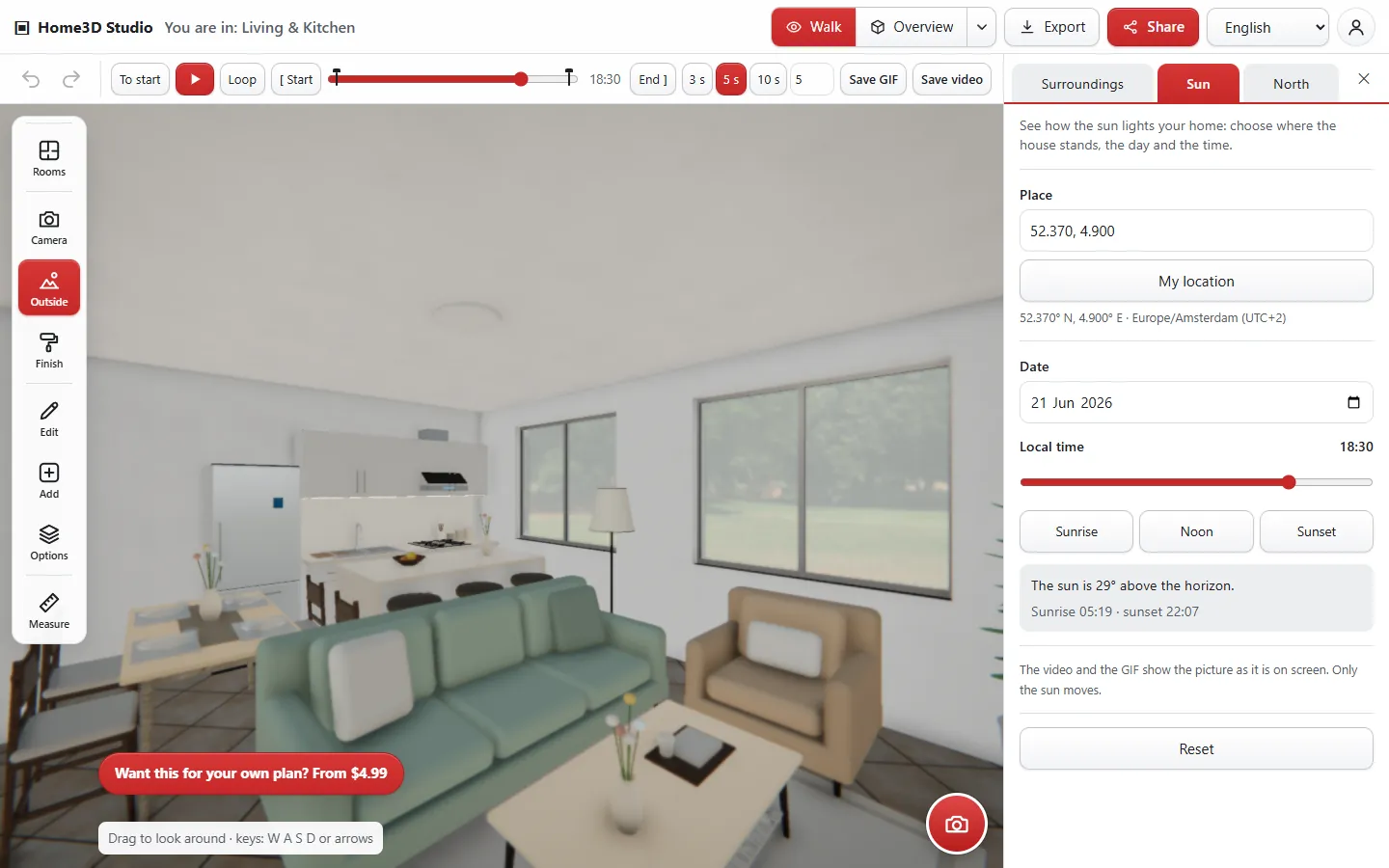
- Open Outside in the toolbar on the left, then the Sun tab. The first time, the place is filled in from your computer's time zone (the largest city in that zone) and the time is 13:00 today.
- In Place, type a city name and pick it from the matching places, or type coordinates such as
48.85, 2.35. Latitude and longitude with N, S, E or W also work. - Or choose My location. Your browser asks for permission first. If location is blocked, search for a city instead.
If no city matches, check the spelling or type the coordinates; the tool offers to use them directly.
Choose the day and the hour
- Date sets the day of the year, so you can compare midsummer and midwinter.
- Local time is the clock time at the place you chose. Move the slider to change the hour.
- Jump to moves straight to Sunrise, Noon or Sunset.
The tool shows how high the sun is above the horizon and the sunrise and sunset times. Near the poles it tells you when the sun does not set or does not rise on that day. The light in the 3D view changes with your choices, in both graphics modes: the sun and the shadows move, and after sunset it turns to dusk and night and the lamps switch on. See Light through the day.
Play the day, save a GIF or a video
The bar above the picture plays the sun through the day, so you see the light move across the room.
- Play runs the sun through the day. To play only some hours, move the time to the first hour and press [ Start, then to the last and press End ]. To start goes back to the first hour, and Loop plays it again and again between the marks.
- Length sets how long the run takes: 3 s, 5 s, 10 s or any number of seconds you type.
- Save GIF and Save video record the run as a file. They show the picture as it is on screen; only the sun moves.
Set north
By default the top of the plan is north. If your plan has another orientation:
- Open the North tab of the Outside tool and choose Set north....
- Open a compass app on your phone and see which way north is where the home stands.
- In the dialog, turn the arrow until the red arrow points north in real life. You can turn the compass or turn the plan, use the 15 degree buttons or the slider, and watch N, E, S and W move.
- Choose Apply. Reset goes back to the plan's top.
The result is shown as "North: ... degrees clockwise from the top of the plan".
Get a true picture of the light
Four settings decide what you see, so set all of them: the Place (it decides how high the sun climbs), North (which way each window really faces), the Date (the season: the same room can be full of sun in December and in shade in June) and the Local time (the hours you use the room). The tool places the sun correctly for these settings; it does not know the buildings or trees around the home.
- TV and screens: low morning or evening sun on a TV wall or a monitor means glare and reflections at those hours.
- Bedroom: a bedroom facing the sunrise is bright early, good for early risers and hard for late sleepers; one facing away stays darker and calmer.
- Living room and kitchen: afternoon sun from the west makes them bright when you come home, and warm in summer.
- Sunlight you can see clearly: use Realistic graphics, or make a picture with Render, where the light through the windows is traced.
Saving and sharing
Your sun settings are kept in your browser for this design and are added to the share link, so someone who opens the link sees the same place, day and hour. See Share, embed and downloads.
For a longer explanation of how to use it when choosing a home or a plot, read the guide How sunlight will fall in your future home.
See it in 3D
Open a sample design and walk through it, check the sun, set the hour and watch the lamps come on. It is free, in your browser, with nothing to install.
Or open a sample directly: 1920s teacher's cottage · Two-bedroom apartment