Article
How to embed a 3D floor plan on your website or listing
Add a walkable 3D floor plan to a page with Home 3D Studio's iframe code, choose a starting view, and check sizing, phone use and sharing controls.
To embed a 3D floor plan on your website, place a walkable model inside the page. Visitors can inspect the layout from above or move through it, instead of opening a separate picture. If you have a Home 3D Studio design, use Share, choose Embed on a website, and copy the ready iframe code into your page editor.
In short: Open your Home 3D Studio design, choose Share and then Embed on a website, and paste the supplied iframe code into your page. Preview the page on a phone and computer, and check the starting view and visitor controls.
An iframe is a small window inside a web page that displays another page. You do not need to recreate the 3D model in your site. You do need to check how that window looks on both a large screen and a phone, and decide which controls visitors should receive.
Choose what visitors see first
An Overview view shows the whole home from above. It works well when the main question is how rooms connect. Walk puts the visitor at eye level and lets them move through the home. Decide which view best explains the property, then make that starting point clear in the text beside the embed.
For a listing, an overview can help visitors place the kitchen, living area and bedrooms before they enter a room. On a design page, a walk may be more useful if you want to show what a particular interior feels like. Try both with someone who has not seen the plan; notice which one helps them orient themselves without instructions.
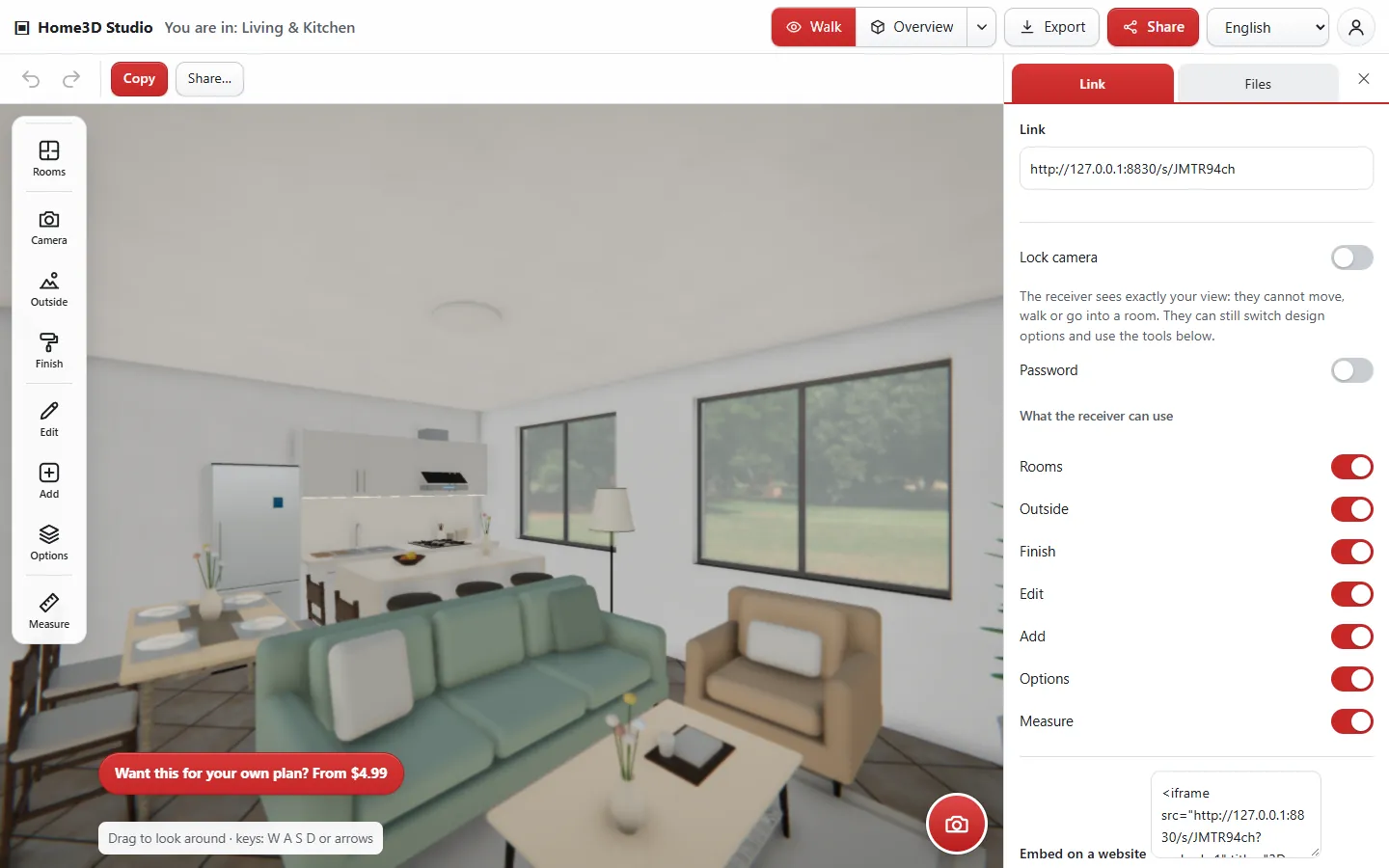
The model can be turned in Overview, while Walk allows visitors to look and move around at eye level. If you share a home with Sun settings, the link carries the place, date, hour and north direction, so visitors see the light you set. Make sure those settings suit the claim and context of the page.
Make the embed comfortable on a phone
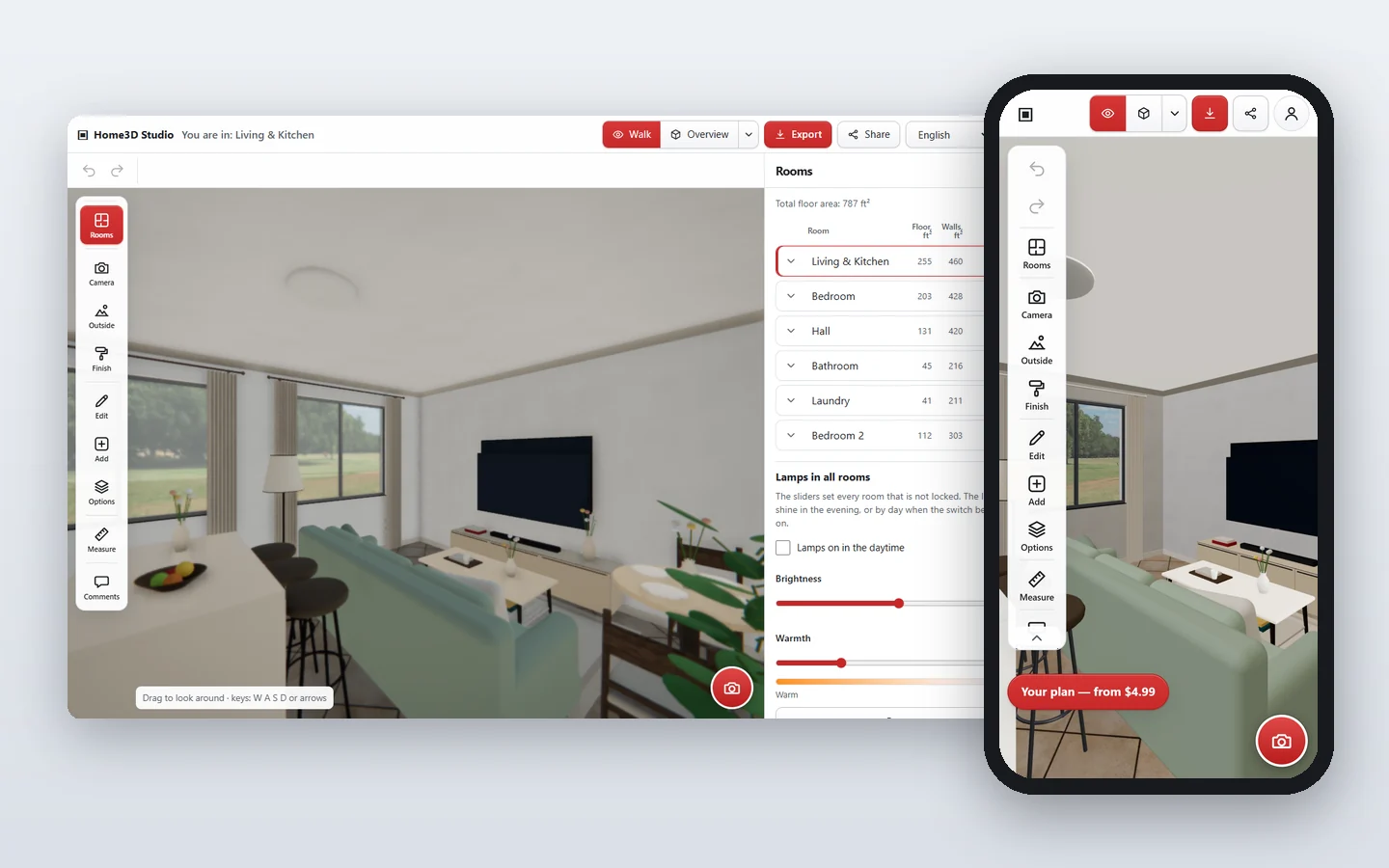
Give the iframe enough width and height for its controls and the model to remain usable. A tiny box may look neat beside a paragraph on a desktop screen but become frustrating on a phone. Preview the actual published page at a narrow width and try moving through the home by tapping the floor.
If the page layout has several columns, consider placing the tour in a full-width section so the model has room. Keep a short heading and description near it: what home is shown, whether it is a visualisation, and what the visitor can do. A line such as “Explore the proposed layout from above or walk through the rooms” is more helpful than an unlabeled frame.
Check the page with ordinary scrolling too. Visitors should be able to reach the content before and after the tour without losing their place. If the embedded frame competes with other interactive elements, simplify the page around it. The purpose of the embed is to answer layout questions, not to crowd out the listing details.
What can visitors do in the model?
Home 3D Studio provides Walk and Overview views. In Walk, visitors can look around and move through the rooms; on a phone they tap the floor to go there. Overview gives a cut-away view from above. The design can also have room information and other tools, depending on what you allow the person you share with to use.
That makes an interactive embed useful alongside a 2D plan and photographs. The plan is best for exact labels and dimensions. Pictures show chosen views. The walk helps visitors understand the route through the rooms. For a listing, be clear that a model made from a plan visualises that drawing. It is not a survey or proof of the finished home's exact appearance.
For a broader explanation of when a walkthrough helps a listing, see 3D floor plans for real estate. If you want to understand the difference between an above image and an interactive model, see 3D floor plan of an apartment. If you list homes for clients, the guide for agents follows an agent's routine from plan to published link.
Private previews and final checks
For a client preview, Home 3D Studio sharing offers an optional password. You can also lock the camera and, with a subscription, choose which tools the recipient may use. Set those options before copying the embed if you need a more controlled presentation. Test the experience with the same access and controls the visitor will have.
Check the source plan once more before publishing: an incorrect wall or dimension in the drawing can carry into the model. Confirm that the embed belongs to the right property and that its starting view fits the page. The sharing and downloads guide covers the available sharing controls.
An embed is most useful when it sits next to clear property information and gives visitors a simple way to answer their own layout questions. Start with the right view, allow enough space and test it as a visitor.
Embed a walkable 3D floor plan on your page
- Open the free family house sample; it needs no sign-up.
- Use Overview and Walk to decide which view best introduces the layout.
- Open Share and choose Embed on a website to copy the ready iframe code.
- Paste the code into a block in your page editor that accepts embeds or HTML, then preview the page on a computer and a phone.
- Compare the visitor's view with the surrounding page: can they see the model, use its controls and understand which home it represents?
Try this free now on the sample, with every tool and no sign-up; at the time of writing, uploading your own plan costs 20 credits, with 50 credits from €4.99.
Your CMS may label the insertion point “embed”, “custom HTML” or something similar. If it removes iframe code, ask whoever manages the site which block or permission accepts embeds. The exact menu is set by your website platform, so follow its page editor for that part of the work.
Do a final page check as a visitor. Make sure the model is visible, the surrounding text explains which property it represents, and the rest of the page remains easy to read. A visitor should know what they are about to explore before interacting with the view.
See it in 3D
Open a sample design and walk through it, check the sun, set the hour and watch the lamps come on. It is free, in your browser, with nothing to install.
Or open a sample directly: 1920s teacher's cottage · Two-bedroom apartment