Baza wiedzy
Udostępnianie, osadzanie i pobieranie
Wyślij link, osadź spacer na swojej stronie, wyeksportuj obrazy, rzuty, modele 3D i wideo albo obejrzyj dom w AR na iPhonie lub iPadzie.
At the top right, Share holds the link, its settings, the embed code and the downloads. The Render button in the top bar makes the pictures.
Udostępnij link
Udostępnij ma dwie zakładki: Link i Pliki. W Link czeka krótki adres oglądanego projektu: wybierz Kopiuj, aby go skopiować, albo Udostępnij…, aby skorzystać z systemowego menu udostępniania telefonu, jeśli przeglądarka je udostępnia.
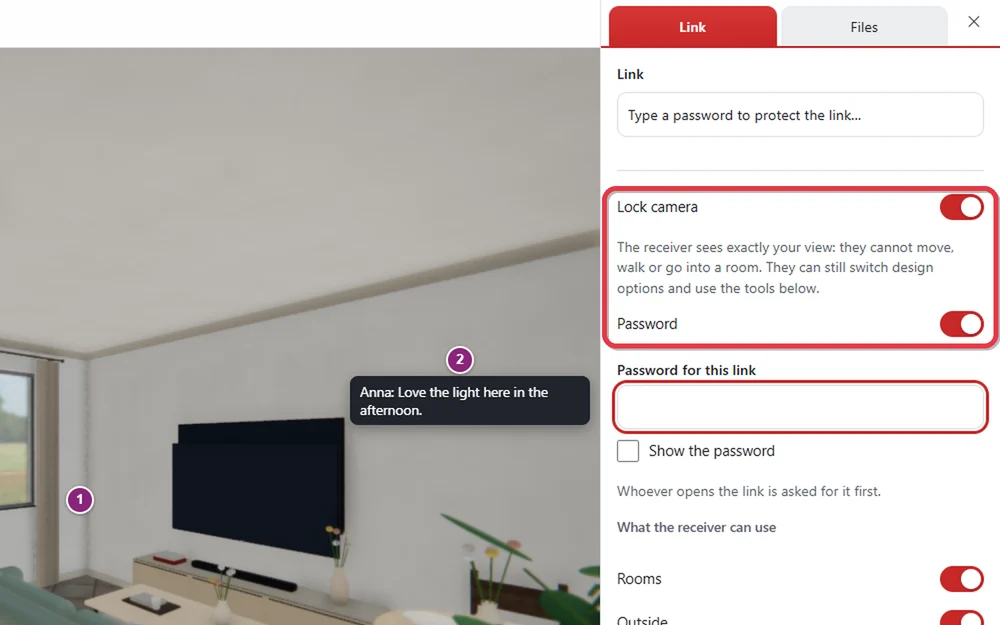
Link przenosi cały projekt w widocznej postaci: widok, ustawienia Słońca (miejsce, datę, godzinę i północ), przesunięte i dodane meble, wykończenie, ściany, drzwi i okna, zamknięte drzwi, nazwy pomieszczeń oraz opcje widoku. Zaznacz Dołącz opcje projektu, aby przesłać też wszystkie opcje projektu. Własne przesłane tekstury nie są przenoszone; odbiorca widzi w ich miejscu oryginalne wykończenie pomieszczenia. Jeśli zmienisz widok po utworzeniu linku, Zaktualizuj link do tego widoku utworzy nowy.
- Zablokuj kamerę: odbiorca widzi dokładnie Twój widok i nie może spacerować ani przejść do innego pomieszczenia. Nadal może przełączać opcje projektu i używać narzędzi, które mu udostępnisz.
- Hasło: osoba otwierająca link musi je najpierw wpisać. Jest ono potrzebne również do komentarzy w projekcie.
- Dostępne narzędzia odbiorcy: wyłącz narzędzia, takie jak Edytuj lub Komentarze, aby link służył tylko do oglądania. Narzędzia, które zostawisz włączone, działają, dopóki masz subskrypcję; bez niej każdy link jest tylko do oglądania: można spacerować, rozglądać się i czytać komentarze, a narzędzia, które zmieniają, renderują lub zapisują, są widoczne, ale zablokowane.
A link to a plan you uploaded works for 30 days, then it expires. Sample designs stay available. A plan read free has no links for other people.
Osadź na stronie internetowej
Osadź na stronie internetowej u dołu zakładki Link daje gotowy kod iframe. Wklej go na swoją stronę lub do ogłoszenia, a spacer po domu pojawi się na niej. W osadzonym widoku dodatkowe panele są ukryte, by zostawić więcej miejsca na dom.
Aby pominąć intro w osadzeniu, dodaj &start=walk lub &start=overview do adresu w kodzie.
Pictures and the Render button
Photos, pictures in a chosen size and AI pictures are made with the Render button in the top bar. How to choose a size and a style, what AI render costs and where the finished pictures go is on Graphics modes and Photo.
Downloads: the Files tab
Open Share, then the Files tab. Under Download it lists:
- Picture of this view: what you see now, as a high-resolution PNG. It opens in a new tab; if the browser blocks the new tab, the picture is downloaded instead.
- Floor plan: a 2D drawing as an SVG, for editing and printing, or a PNG, for sharing. Tick what it shows: Furniture, Room names and areas, Room dimensions and Furniture sizes (width × depth; they need the furniture). Your choices are remembered in your browser.
- 3D model: the whole home, with its walls, floors and every piece of furniture, as GLB for Blender and most 3D apps, USDZ for AR on iPhone and iPad, or OBJ for SketchUp and CAD (shapes only). Each piece of furniture is a separate piece named after its type, so you can pick it up and move it in a 3D program. Untick With textures for plain colours and a much smaller file; OBJ never has textures.
- Intro video: Record plays the intro and records it as MP4 or WebM, about 9 seconds. Chrome, Edge and Safari can record it; where the browser cannot, this block is hidden.
- Plan data: the recognised plan as JSON, for developers.
The files are created on your device while you wait, so large models can take a moment. The 3D files, the floor plan drawings and the plan data come with a subscription (Plus or Pro) and show a lock until then; the picture of this view and the intro video are open to everyone.
Oglądanie domu w AR na iPhonie lub iPadzie
- Open Share on your iPhone or iPad, choose the Files tab and save the USDZ file under 3D model.
- Otwórz go z aplikacji Pliki albo z wiadomości, w której go zapisano. Otworzy go własna przeglądarka AR firmy Apple.
- Postępuj zgodnie z podpowiedziami na ekranie, aby ustawić model na stole lub podłodze.
Co jest za darmo
The picture of this view, the intro video and photos made with Local render are free, on the sample designs and on your own plan; an AI render costs 7 credits a picture (see Graphics modes and Photo). The plan's files (the 3D files, the floor plan drawings and the plan data) come with a subscription (Plus or Pro), unless you bought a credit pack before subscriptions started; see Your own plan. One file is free for a plan that was read free and then closed: its data, with all your changes, as a JSON file from the lock screen, for the 30 days the plan is kept.
Zobacz to w 3D
Otwórz przykładowy projekt i przejdź się po nim, sprawdź słońce, ustaw godzinę i zobacz, jak zapalają się lampy. To bezpłatne, działa w przeglądarce i nie wymaga instalacji.
Albo otwórz przykład od razu: Domek nauczyciela z lat 1920–1929 · Mieszkanie z dwiema sypialniami